Settings
Display
Wall display
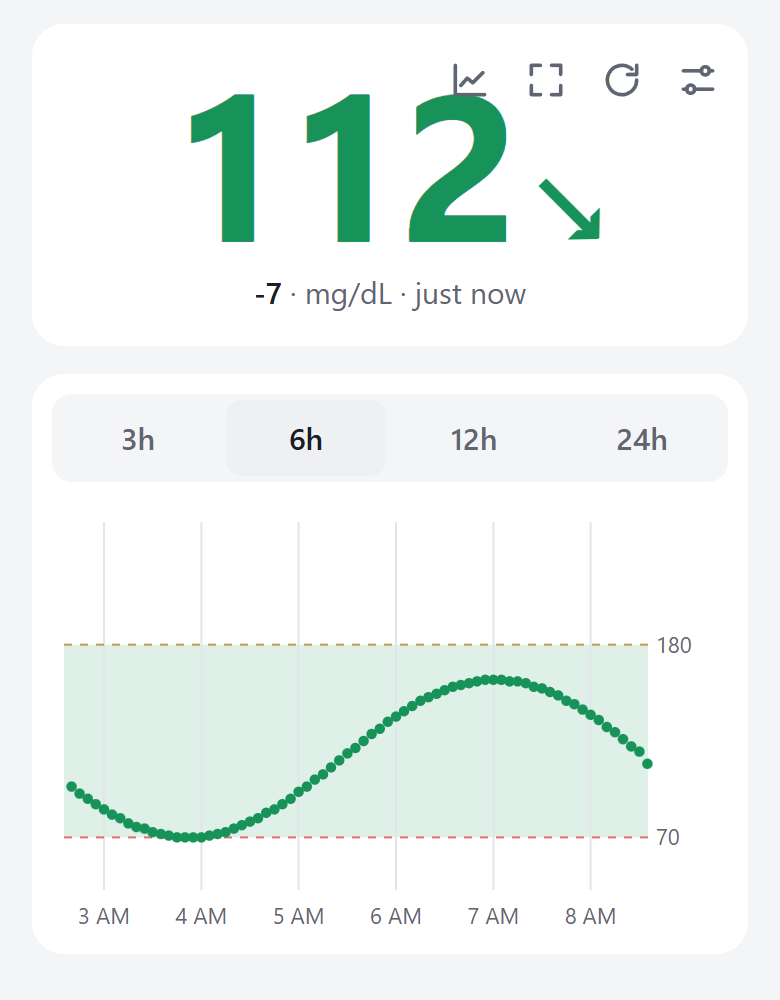
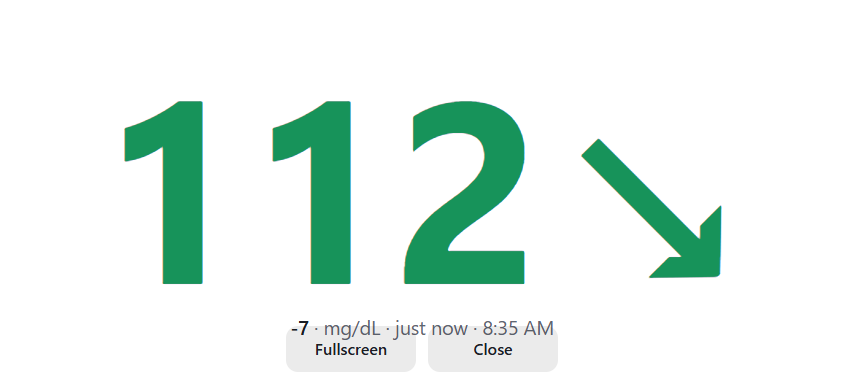
Use a spare tablet or screen as an always-on readout. Use the expand button on the home screen for big-number mode. It fills the window; tap the screen to show its controls, including Fullscreen.
Keyboard: C chart view, B big number, F fullscreen, R refresh, Esc close. Open glucoseanywhere.com/#chart to start in chart view.
Setup tips for a wall or desk tablet
- Install it. Android: Chrome menu, Add to Home screen (or Install app). iPad: Share, Add to Home Screen. It then opens without browser bars.
- Keep it awake. With Stay awake on, big-number and chart views ask the browser to keep the screen on. If the status above says it can't, set the device's screen timeout to Never (Android: Settings, Display; iPad: Settings, Display & Brightness, Auto-Lock) and leave it plugged in.
- Lock it to the app. iPad: Guided Access (Settings, Accessibility). Android: Screen pinning. This stops accidental exits.
- Auto-start. Turn on the option above, and the app will open straight to the big number each time. Android also has a "Big display" shortcut when you long-press the app icon.
- Dim it at night with the device's brightness setting. The big display is black, so it's easy on the eyes and on OLED screens.
- If the number is crossed out, the last reading is over 15 minutes old: check Wi-Fi, or that the sensor is still sending to the phone.
Dexcom account
Signing out removes your sign-in from this device. Your reading history stays.
Your data
Install
Add GlucoseAnywhere to your home screen or desktop to open it like an app.
About
Not a medical device. GlucoseAnywhere is not affiliated with or endorsed by Dexcom. Don't use it to make treatment decisions or in place of the Dexcom app's alarms. It uses Dexcom's unofficial Share service, which can change or stop working at any time.
Privacy. Everything stays in this browser. Your sign-in and readings are stored on this device, and the only server this app talks to is Dexcom's, to sign in and fetch readings. There is no GlucoseAnywhere server, account or analytics.
Your password is saved on this device so the app can sign in again when Dexcom's session expires. Anyone who can use this browser profile can read it. On a shared computer, turn off "Remember me" or use "Forget everything" when you're done.
Not synced. Each browser or device keeps its own sign-in and history. Clearing site data deletes it.
Verify it yourself
- Open your browser's developer tools (F12, or Cmd+Option+I on a Mac) and choose the Network tab.
- Sign in. You should see requests only to share2.dexcom.com, shareous1.dexcom.com or share.dexcom.jp, plus this site's own files. Nothing else.
- Look at this page's Content-Security-Policy response header. It tells your browser to block every connection except those Dexcom servers.
- Turn on airplane mode and reopen the app. Your saved readings still appear, because they're stored on this device.
- Read the code. Only dexcom.js contacts Dexcom, and only store.js saves your data. The small sw.js file keeps an offline copy of this app's own files and nothing else.
What's stored on this device
Source code · MIT license · Report a problem
GlucoseAnywhere